Have you ever encountered this situation: the volume is turned up to the maximum, yet the sound from your computer, phone, or tablet speakers remains as faint as a mosquito's buzz? This not only ruins your movie-watching experience but can also lead to missing critical information during meetings or online classes.
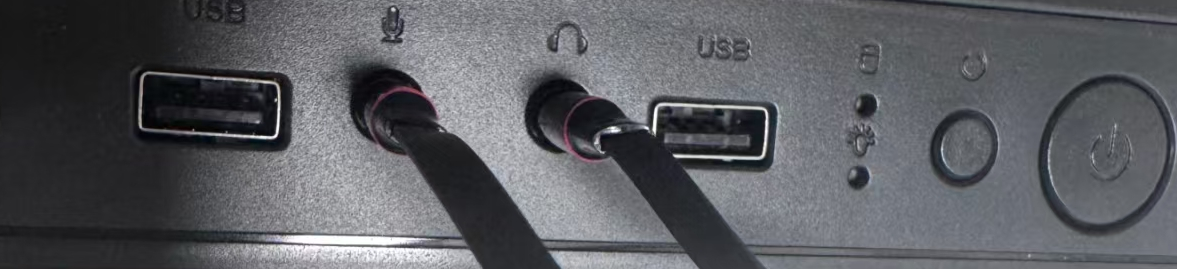
Low speaker volume is rarely caused by a single factor; it is usually the result of a combination of software settings, driver issues, hardware blockages, or system limitations. This article provides a comprehensive troubleshooting guide to help you quickly identify the problem and restore clear, loud audio quality.
I. Basic Software Settings Check
Before suspecting hardware failure, please confirm that the following basic settings are correct. Statistics show that over 60% of "low volume" issues stem from simple setting errors.
1. Check System Master Volume and Application-Specific Volume
Modern operating systems (Windows 10/11, macOS, Android, iOS) allow you to adjust the volume for each application individually.
- Windows Users: Right-click the speaker icon in the bottom-right corner of the taskbar and select "Open Volume Mixer." Ensure that the volume sliders for your browser, video player, or conferencing software have not been lowered individually.
- Mac Users: Go to "System Settings" > "Sound" to check the output volume. Additionally, when using specific apps, check if the app itself has independent volume controls.
- Mobile Users: Distinguish between "Media Volume," "Call Volume," and "Alarm Volume." When playing videos, press the volume buttons to ensure you are adjusting the "Media Volume" rather than other channels.
2. Disable or Enable "Audio Enhancements"
This may sound contradictory, but logic differs across devices.
- Windows: Right-click the speaker icon > "Sound Settings" > "More sound settings" > Double-click your speaker device > "Enhancements" tab.
- Try checking "Disable all enhancements." Sometimes third-party audio software (such as Dolby Access or Realtek Audio Console) conflicts with the system, causing volume attenuation.
- If enhancements are already disabled, try enabling "Loudness Equalization." This can significantly improve the listening experience for low-volume content.
3. Check Automatic Volume Reduction for Communications
This is a classic Windows "feature." When the system detects communication activity (e.g., Skype or Zoom launching), it automatically reduces other sounds by 80%.
- Solution: Control Panel > Hardware and Sound > Sound > "Communications" tab > Select "Do nothing."
II. Drivers and System Updates
Outdated or corrupted audio drivers are common culprits behind audio anomalies.
1. Update Audio Drivers
- Windows: Right-click the "Start" button > "Device Manager" > Expand "Sound, video and game controllers." Right-click your audio device (usually Realtek High Definition Audio, etc.) and select "Update driver." If automatic updates fail, it is recommended to download the latest dedicated drivers from your computer manufacturer's website (e.g., Dell, HP, Lenovo).
- macOS/iOS/Android: Ensure your system is updated to the latest version, as audio drivers are typically included in system updates.
2. Restart Audio Services
Sometimes audio services can enter a "fake dead" state.
- Windows: Press
Win + R, typeservices.msc, find the "Windows Audio" service, right-click it, and select "Restart."
III. Physical Hardware Cleaning and Maintenance
If your device has been in use for some time, physical blockage could be the culprit, especially for phones and laptops.
1. Clean the Speaker Grille
Dust, lint, grease, or even tiny food residues can clog speaker holes, causing sound to become muffled or quiet.
- Method:
- Use a soft-bristled brush (like a clean toothbrush) to gently sweep the grille.
- Use Blu-tack to repeatedly press against the grille to pull out deep-seated dust.
- Do not use sharp objects to poke the grille, nor spray liquid cleaners directly, as this may damage the internal diaphragm.
- For phones, you can use specialized "sound wave drainage/dust removal" apps that vibrate at specific frequencies to expel dust and moisture.
2. Check Bluetooth Connections
You might think the sound is coming from the device's built-in speakers, but it could actually be connected to a nearby Bluetooth headset or speaker located in another room or inside a bag.
- Solution: Temporarily turn off the device's Bluetooth function to force audio output through the local speakers and test if the volume returns to normal.
IV. Advanced Solutions: Third-Party Enhancement Software
If the above methods are ineffective and you are sure the hardware is undamaged, consider using third-party software to bypass system volume limits.
- Volume Master (Chrome Extension): Ideal for situations where web video volume is low; it can boost tab volume up to 600%.
- Equalizer APO (Windows): A powerful system-level equalizer that can increase overall output volume via Preamp gain. Note: Excessive gain may cause distortion; please adjust moderately.
- Boom 3D / Letasoft Sound Booster: These commercial applications offer one-click volume boosting and 3D surround effects, suitable for users with higher audio quality requirements.
V. When to Seek Professional Repair?
If you have tried all the steps above and the volume remains low, or if you experience the following symptoms, it is likely a hardware failure:
- Severe Distortion: Obvious tearing sounds or noise even at low volumes.
- Intermittent Sound: Sound cuts in and out, or changes when tapping the device.
- One-Sided Silence: Only one side of a stereo device produces sound.
- History of Water Exposure: The device has recently come into contact with liquids.
In such cases, the speaker diaphragm may be aged or ruptured, or internal cables may be loose. It is recommended to contact official after-sales support or a professional repair shop for hardware replacement.
Conclusion
Low speaker volume is frustrating, but in most cases, it is not irreversible hardware damage. By systematically checking software settings, updating drivers, and cleaning physical grilles, the vast majority of users can resolve the issue without spending any money.