🖱️ How to use: Click the mouse buttons below to test them, move your cursor in the tracking area, and use your scroll wheel to test all functionality.
What's This Mouse Tester All About?
This mouse testing tool lets you check if all your mouse buttons are working properly, test your scroll wheel, and see how well your mouse tracks movement. It's super handy for testing new mice, checking if your gaming mouse is working right, or just seeing what your mouse can do.
What Can You Test Here?
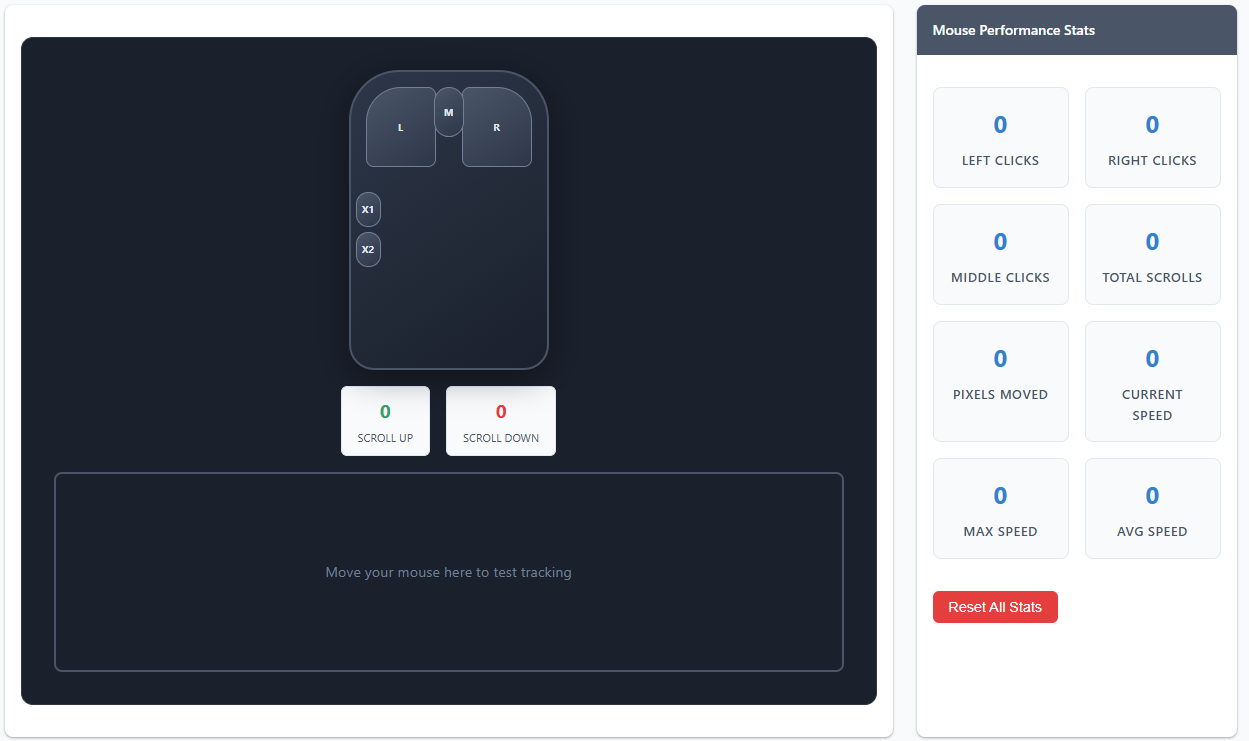
- All Mouse Buttons: Left, right, middle click, and side buttons (if you have them)
- Scroll Wheel: Both up and down scrolling detection with visual direction indicators
- Movement Tracking: See how smoothly your mouse moves with real-time speed monitoring
- Click Counting: Keep track of how many times you've clicked each button
- Movement Distance: See how far you've moved your mouse in pixels
- Speed Testing: Track current, maximum, and average mouse movement speeds
How to Use This Thing
- Test Your Buttons: Click on each button in the mouse diagram - they'll light up blue when clicked
- Check Your Scroll Wheel: Scroll up and down anywhere on the mouse visual or in the movement area
- Watch Scroll Direction: Top half glows green for scroll up, bottom half glows red for scroll down
- Test Movement: Move your mouse around in the gray tracking area to see the trail and speed
- Precision Test: Use the crosshair area at the bottom to test precise mouse movements
- Watch the Stats: Keep an eye on the numbers - they update in real-time as you test
What Those Numbers Mean
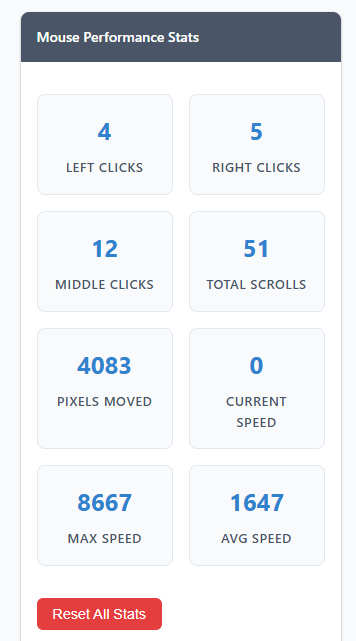
- Left/Right/Middle Clicks: Total number of times you've clicked each button
- Scroll Up/Down: Separate counters for each scroll direction
- Total Scrolls: Combined count of all scroll wheel events
- Pixels Moved: Total distance your mouse has traveled across the screen
- Current Speed: Your mouse's current movement speed in pixels per second
- Max Speed: The fastest your mouse has moved during this session
- Avg Speed: Average movement speed across all movements
Scroll Wheel Testing
💡 - Scroll anywhere: You can scroll on the mouse visual or in the tracking area
- Direction indicators: Top half glows green for up, bottom half glows red for down
- Visual feedback: The scroll wheel shows exactly which direction you're scrolling
- Middle click: Click the middle button to test middle mouse button functionality
Speed Testing
Real-time Speed: Move your mouse in the tracking area to see live speed updates. Faster movements will show higher speeds, and you can see your maximum and average speeds over time.
Gaming Performance: High-end gaming mice typically show higher maximum speeds and more consistent tracking at high speeds.
Troubleshooting Mouse Issues
- Button Not Working: If a button doesn't light up when clicked, it might be broken or have connectivity issues
- Scroll Problems: If scrolling doesn't register, try cleaning your scroll wheel or checking mouse settings
- Tracking Issues: Jerky movement or no trail could mean you need to clean your mouse sensor or change mouse pad
- Side Buttons Not Detected: Some mice need special drivers for side buttons to work in browsers
- Speed Issues: Inconsistent speeds might indicate sensor problems or surface issues
Gaming Mouse Tips
DPI Testing: Higher DPI mice will move the crosshair more dramatically with small movements and show higher speeds.
Polling Rate: Gaming mice with higher polling rates will create smoother trails and more consistent speed readings.
Button Response: Gaming mice should have very quick button response - you should see the button light up instantly when clicked.
What This Tool Can't Do
- Double-Click Speed: Browser limitations prevent accurate double-click timing tests
- Exact DPI Measurement: We can't measure your exact DPI, but we can show relative sensitivity
- Hardware Diagnostics: This won't tell you if your mouse hardware is physically failing
- Driver Issues: Some advanced mouse features need specific drivers that browsers can't access
Browser Compatibility
This tool works best in modern browsers like Chrome, Firefox, Safari, and Edge. Some older browsers might not detect all mouse buttons or scroll events properly. If something's not working, try a different browser or make sure your browser is up to date.
Note: This is a browser-based tool, so it has some limitations compared to dedicated mouse testing software. For serious gaming mouse calibration or hardware diagnostics, you might want to use your mouse manufacturer's official software.