Keyboard Testing Tool

Test every single key on your keyboard - works with any layout

Detecting keyboard... Ready to test!

Loading Keyboard Layout...

Your keyboard will appear here in just a moment

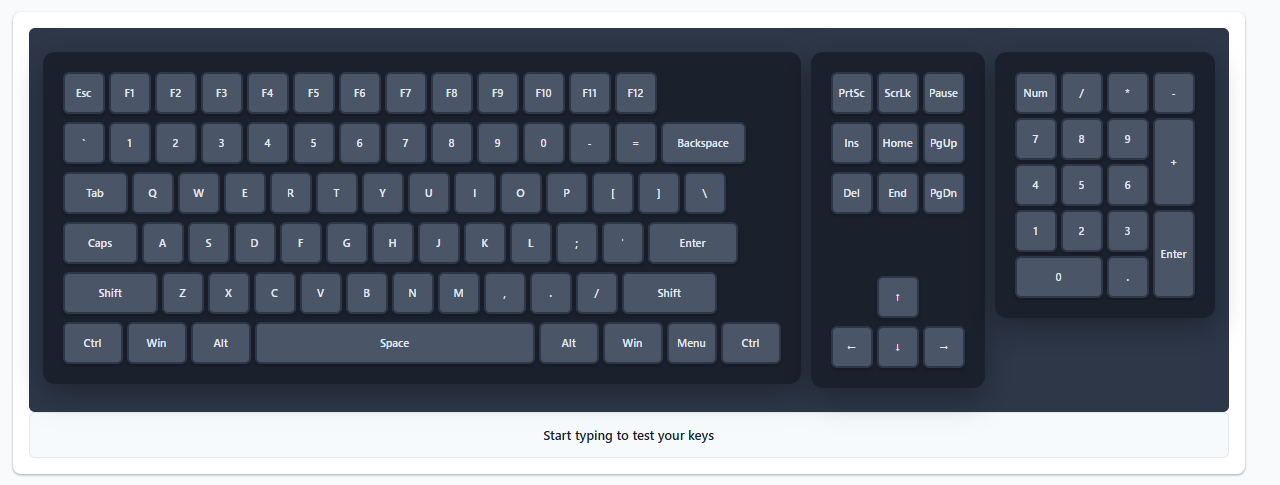
Start typing to test your keys
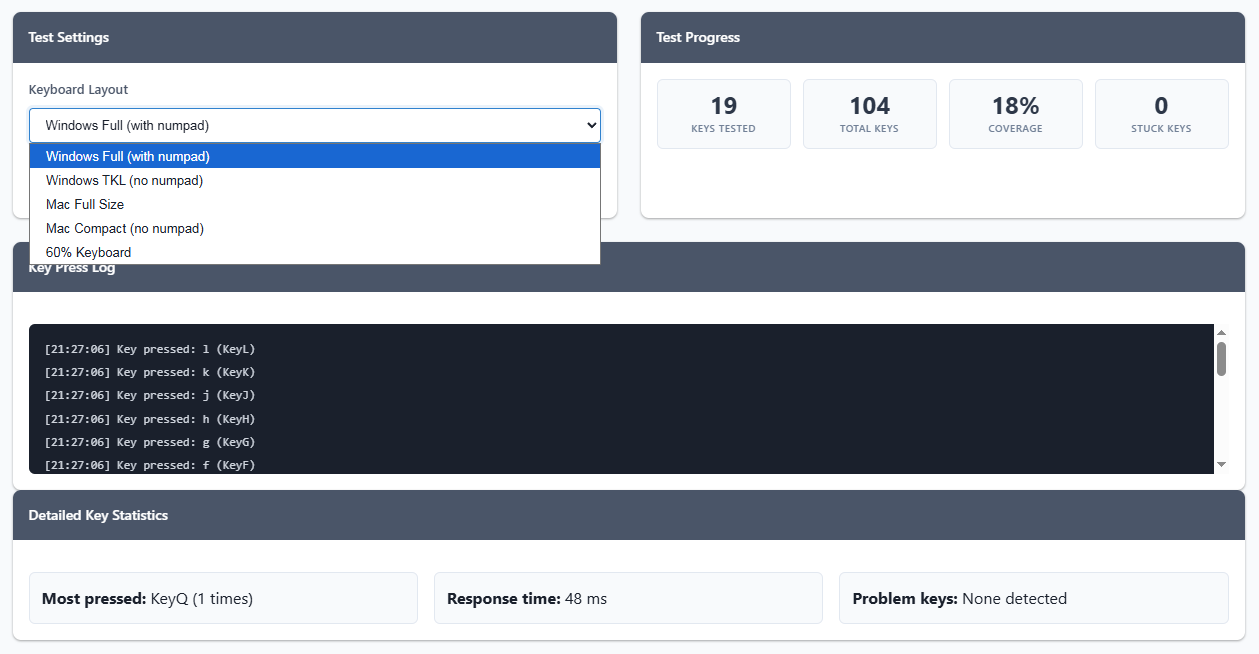
Test Settings
Test Progress
0
Keys Tested
104
Total Keys
0%
Coverage
0
Stuck Keys
Key Press Log
Waiting for key presses...
Detailed Key Statistics
Most pressed: None yet
Response time: -- ms
Problem keys: None detected

How This Keyboard Tester Works

This tool helps you check if every key on your keyboard is working properly. Whether you just bought a new mechanical keyboard, spilled coffee on your laptop, or want to test your gaming keyboard's response time - we've got you covered.
Getting Started is Super Easy

  1. Pick your keyboard type: Choose from the dropdown - we support everything from full-size Windows keyboards to compact Mac layouts
  2. Start typing: Just press any key and watch it light up green on the virtual keyboard
  3. Check for problems: Keys that stay red might be stuck, keys that don't light up might be broken
  4. Test special keys: Don't forget to test Shift, Ctrl, Alt, Function keys, and that numpad if you have one
  5. Export your results: Click "Export Results" to save your test data as a JSON file

Different Keyboard Layouts We Support

What the Colors Mean

  • Gray: Key hasn't been pressed yet
  • Green: Key is working perfectly
  • Red (blinking): Key might be stuck or held down
  • Blue: Special function keys

Common Keyboard Problems We Can Detect

⚠️
  • Dead keys: Keys that don't register at all when pressed
  • Stuck keys: Keys that keep sending signals even when not pressed
  • Bouncing keys: Keys that register multiple times with one press
  • Slow response: Keys with noticeable delay
  • Ghost keys: Unwanted key presses when multiple keys are held

Pro Tips for Testing

For mechanical keyboards: Test each switch thoroughly - press straight down, not at an angle. Some switches can be picky about actuation.

For laptop keyboards: Press firmly but not too hard. Butterfly and scissor switches can be delicate.

For gaming keyboards: Test your WASD keys extra carefully, and check N-key rollover by pressing multiple keys at once.

Troubleshooting Issues

Why Test Your Keyboard?

Regular testing helps catch problems early. If you're buying a used keyboard, test it first. Gamers should test before tournaments. Writers and coders - test those heavily-used keys regularly. And if you just cleaned your keyboard, definitely test it before that important meeting!

Note: This tool tests keyboard functionality at the browser level. Some system-level issues might not be detected. For hardware diagnostics, consider manufacturer testing tools too.