Ready to test your microphone! Select your mic from the dropdown and click "Start Test" to begin checking your audio input.
How to Test Your Microphone Online
Welcome to our free online microphone test tool! This handy utility helps you check if your mic is working properly, test audio quality, and troubleshoot any issues - all right from your browser!
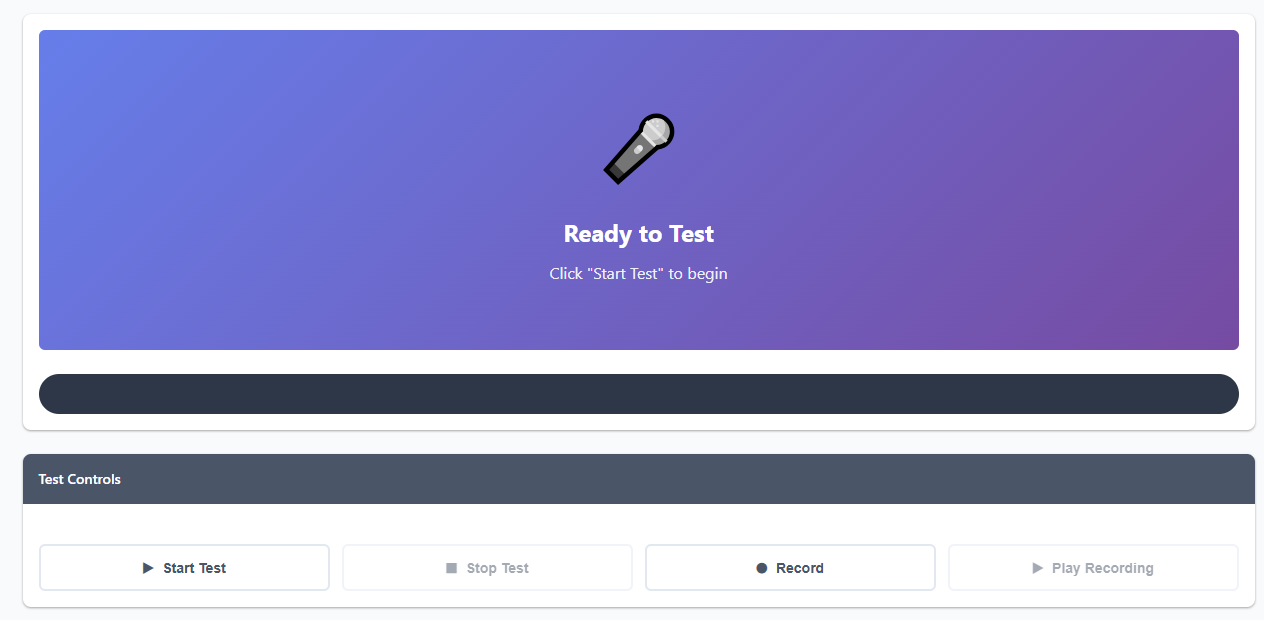
Quick Start Guide
- Choose your mic: Select your preferred microphone from the dropdown menu at the top
- Start the test: Hit the "Start Test" button and allow browser access to your microphone
- Speak into your mic: Talk normally and watch the volume meter respond to your voice
- Check the visuals: See your audio waveform and frequency spectrum in real-time
- Make a recording: Click "Record" to capture a sample, then play it back to check quality
- Download if needed: Save your test recording for later reference or sharing
Understanding Your Microphone Properties
- Channels: Shows if your mic is mono (1) or stereo (2). Most mics are mono, which is perfectly fine for voice
- Sample Rate: Higher rates (like 48000 Hz) mean better quality. Standard is 44100 Hz or 48000 Hz
- Sample Size: Bit depth of audio samples. 16-bit is standard, 24-bit is professional quality
- Latency: Delay between speaking and processing. Lower is better - under 0.02s is great
- Auto Gain: Automatically adjusts mic sensitivity. Useful but can sometimes cause issues
- Echo Cancel: Reduces feedback and echo. Essential for video calls and streaming
What the Visual Indicators Mean
Volume Meter: Shows your current audio level. Green means good levels, yellow is getting loud, red means you're clipping (too loud).
Waveform Display: Shows the shape of your audio signal over time. Bigger waves mean louder sound. Look for clean, consistent patterns.
Frequency Spectrum: Displays which frequencies are present in your audio. Voice typically ranges from 80 Hz to 255 Hz for men, 165 Hz to 255 Hz for women.
Common Microphone Issues & Quick Fixes
- Mic not detected? Check if it's properly plugged in. USB mics may need a moment to initialize
- No sound at all? Make sure you've allowed browser access and the mic isn't muted in your system settings
- Too quiet? Increase mic gain in system settings or move closer to the microphone
- Too loud/distorted? Lower the gain or back away from the mic. Check if "boost" is enabled and turn it off
- Echo or feedback? Use headphones, reduce speaker volume, or enable echo cancellation
- Background noise? Enable noise suppression in your system settings or use a quieter environment
Tips for Better Audio Quality
- Positioning matters: Keep your mic 6-12 inches from your mouth for best results
- Avoid plosives: Speak slightly off-axis to prevent "popping" P and B sounds
- Room acoustics: Soft furnishings reduce echo. Avoid empty rooms with hard surfaces
- Use a pop filter: Even a simple foam cover can dramatically improve quality
- Check your cables: Loose or damaged cables cause crackling and dropouts
- Update drivers: Keep your audio drivers current for best performance
Different Microphone Types
- Built-in laptop mics: Convenient but basic quality. Fine for casual calls
- Headset mics: Good for gaming and calls. Consistent positioning helps quality
- USB microphones: Great for podcasting and streaming. Plug-and-play convenience
- XLR microphones: Professional quality but need an audio interface
- Lavalier mics: Clip-on style, perfect for presentations and video
Browser Compatibility
This microphone test works best in modern browsers like Chrome, Firefox, Edge, and Safari. Some older browsers might not support all features. For best results, keep your browser updated!
Privacy note: All testing happens locally in your browser. We don't upload or store any audio recordings unless you explicitly download them to your device. Your privacy is completely protected!