CPU Processing Monitor
Real-time CPU workload information will show up here when testing starts
Heavy calculations • Multi-threading • Memory operations • Complex algorithms
Ready to start CPU stress test
Test Settings
Professional CPU performance evaluation and stress testing platform
Real-time CPU workload information will show up here when testing starts
Heavy calculations • Multi-threading • Memory operations • Complex algorithms
This CPU stress testing tool is built to really put your processor through its paces. Whether you're testing a new build, checking if your overclock is stable, or just curious about what your CPU can handle, this tool gives you a comprehensive workout for your processor.
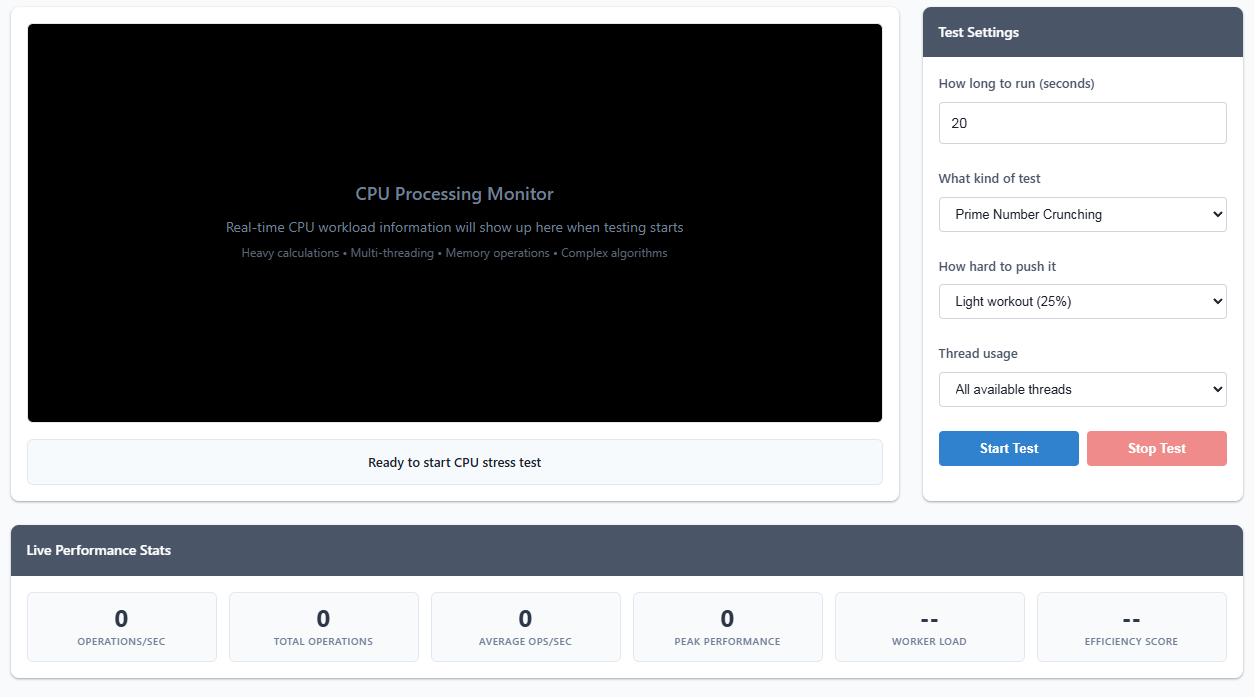
The tool runs intensive JavaScript calculations that hammer different aspects of your CPU:
Operations per Second: Higher numbers generally mean better performance, but consistency matters too. Look for stable performance without big drops.
Efficiency Score: This compares your actual performance to theoretical maximum. Higher percentages indicate better optimization.
Performance Chart: Shows how your CPU performs over time. Thermal throttling will appear as gradual performance decline.
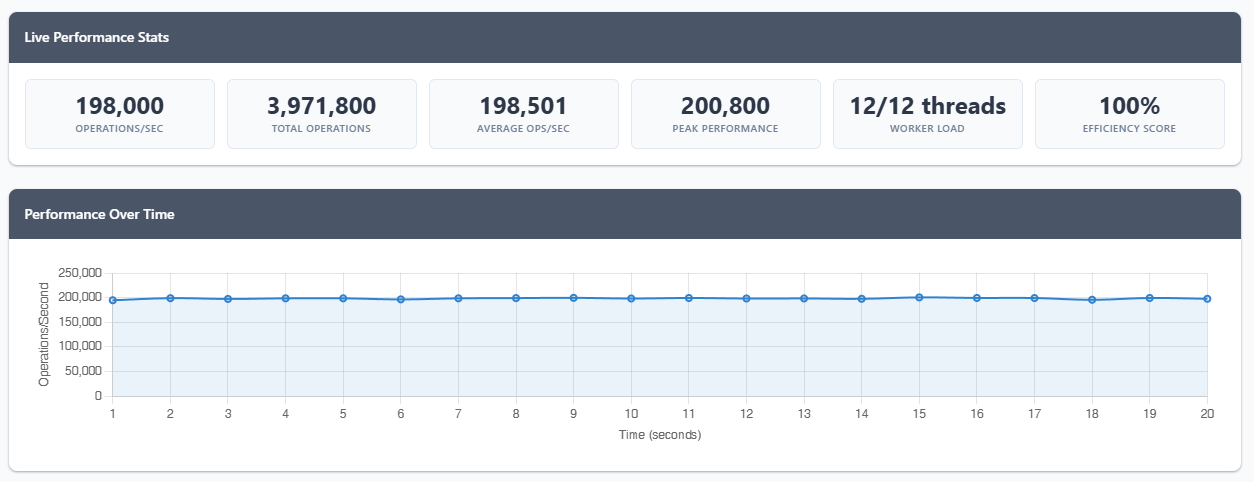
This tool uses JavaScript Web Workers to create CPU-intensive workloads that run entirely in your browser. It doesn't install anything and runs in a secure, sandboxed environment. The stress tests use various computational algorithms designed to utilize different CPU execution units and test thermal and power delivery stability.
Heads up: Browser-based testing has limitations compared to native stress testing software. For serious overclocking validation, consider using tools like Prime95 or AIDA64 alongside this web-based test.