Whether you're attending online meetings, live streaming, recording videos, or using voice chat while gaming, a sudden microphone failure is one of the most frustrating issues. The good news: over 90% of microphone problems can be resolved with simple troubleshooting steps on your own.
This guide organizes the most effective troubleshooting methods from simplest to most complex (compatible with Windows 10/11, updated for 2025 system versions). Follow these steps, and you'll likely restore your microphone functionality quickly.
Step 1: Top 5 "Quick-Fix" Checks (Complete in 1 Minute)
Is the microphone physically muted?
Many headsets or standalone microphones have a mute button or sliding switch on the cable or body. Ensure it hasn't been accidentally activated.Are plugs/ports loose or incorrectly connected?
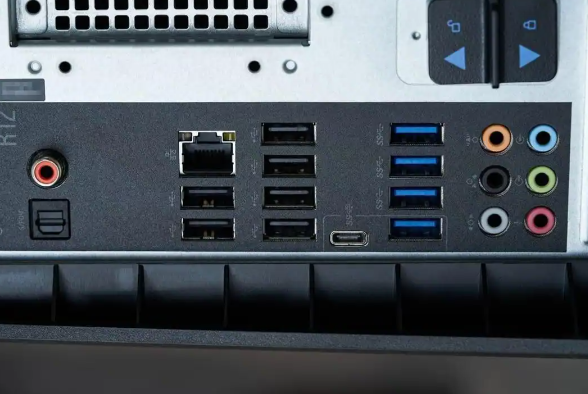
- Traditional 3.5mm microphones: Plug into the pink port (not the green headphone jack).
- USB microphones: Try a different USB port (front-panel USB ports often have poor contact).
- Built-in laptop microphones: Unplug any external headphones and test again.
Is the volume slider set too low or muted?
Right-click the volume icon in the system tray → Sound settings → Under Input, ensure the microphone volume is set above 70%. Watch the green volume bar to see if it moves when you speak.Is the correct default input device selected?
In Sound Settings → Input, confirm your actual microphone is selected (not "Line Input," "Disabled Device," etc.).Does the application have microphone permissions?
Start Menu → Settings → Privacy & Security → Microphone
Ensure both global toggles are enabled:- Microphone access
- Allow apps to access your microphone
Then scroll down and verify that your specific application also has permission enabled.
If sound still isn't working after these five steps, proceed below.
Step 2: Run Windows Built-in Troubleshooter
Windows includes highly effective diagnostic tools:
Method 1 (Recommended):
Press Win + S, search for "Recording," then select "Find and fix problems with recording audio" or "Recording Audio Troubleshooter." Follow the prompts; it will automatically detect and attempt repairs.
Method 2:
Settings → System → Sound → Advanced → Troubleshoot output/input devices (location may vary slightly by version).
Often, just clicking "Next" a few times resolves permission conflicts or driver issues automatically.
Step 3: Check and Update/Reinstall Audio Drivers
Driver issues are currently the #1 cause of microphone failures.
Steps:
- Right-click This PC / My Computer → Manage → Device Manager.
- Expand Sound, video and game controllers.
- Locate your audio device (common names: Realtek, Conexant, High Definition Audio, etc.).
- Right-click → Update driver → Search automatically for drivers.
- If updating doesn't help → Right-click again → Uninstall device → Restart your computer (Windows will reinstall the driver automatically).
Laptop users: Visit your manufacturer's official website (Lenovo, ASUS, Dell, HP, etc.) to download the latest audio drivers. These are often newer than those provided by Windows Update.
Step 4: Microphone Volume Still Too Low or Noisy?
- Go to Sound Settings → Input → Device properties → Additional device properties.
- In the Levels tab, increase Microphone Boost to +10dB ~ +20dB (avoid maxing out to prevent distortion).
- In the Enhancements tab, try enabling Noise Suppression and Echo Cancellation as needed.
Step 5: Still Not Working? Consider These Scenarios
| Symptom | Possible Cause | Recommended Solution |
|---|---|---|
| Microphone not visible in Device Manager | Hardware failure / Disabled in BIOS | Test with another mic / Enter BIOS (F2/Del at boot) and enable "Onboard Audio" or "HD Audio" |
| Only one specific app has no sound | App-specific settings | Manually select the correct microphone within Zoom/Discord/OBS settings |
| Bluetooth headset mic not working | Bluetooth protocol compatibility | Switch to wired mode / Update Bluetooth drivers |
| Suddenly stopped working, reboot ineffective | Corrupted system files | Try System → Recovery → "Reset this PC" (keep files) |
Final Summary: Print and Post on Your Wall
- Physical connection + Mute switch
- System volume & Default device selection
- Privacy permissions (Most Critical!)
- Windows Recording Troubleshooter
- Update/Reinstall audio drivers
- Mic Boost + Noise suppression
- Test hardware by swapping microphone/USB port
Following this sequence resolves over 95% of "microphone no sound" issues within 10 minutes. If all steps fail, the microphone hardware is likely defective—consider replacing it.