Keyboard issues are one of the most common peripheral problems. Symptoms like unresponsive keys, typing lag, individual key failures, or garbled input are familiar to many. However, over 90% of these cases do not require a new keyboard and can be resolved through simple troubleshooting.
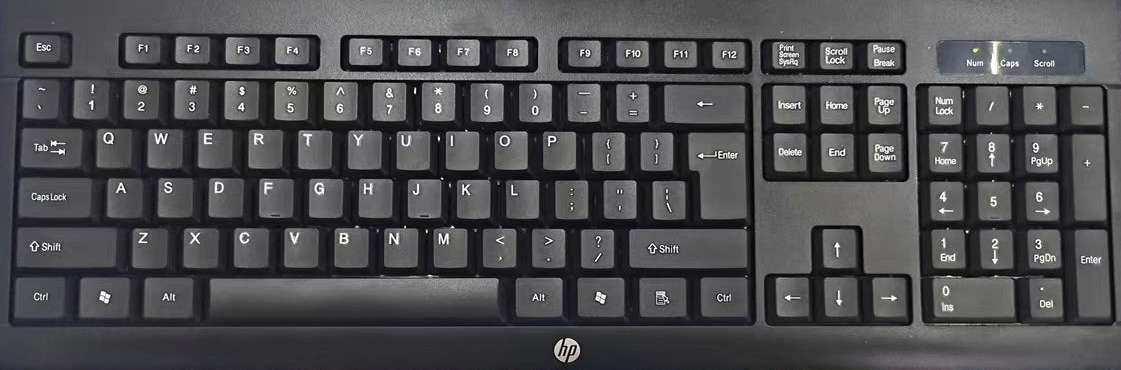
This guide applies to wired/wireless mechanical keyboards, membrane keyboards, and laptop built-in keyboards. Follow the steps from simplest to most complex. Remember to back up important data before starting and take anti-static precautions (touch metal to discharge).
First, Identify Your Keyboard Fault Type (Quick Diagnosis)
- Type A: Keyboard completely unresponsive (no keys work, including Num Lock light).
- Type B: Partial key failure / stuck keys / repeated input / lag / garbled input.
- Type C: Abnormal lighting / shortcut or function keys not working (common in mechanical/gaming keyboards).
General Basic Troubleshooting (Solves 30–50% of Cases in Under 5 Minutes)
The Simplest Three-Step Check
- Wired Keyboard: Unplug the USB, try a different USB port (front, back, different hubs).
- Wireless Keyboard: Replace batteries/recharge → Re-pair the receiver (press Esc or Fn + Receiver key to reset).
- Restart the computer (shut down, wait 10 seconds, then power on).
Test for Hardware Issues
- Enter BIOS during startup (mash Del/F2/F10/Esc depending on motherboard). If the keyboard works in BIOS → Issue is with Windows system/drivers; if completely unresponsive → Hardware or connection issue.
- Test with the On-Screen Keyboard (Win+R → type
osk→ Enter). If you can click letters with the mouse → Keyboard hardware might be faulty; if you can't → System input issue.
Disconnect Other Peripherals
- Unplug all USB devices (mouse, USB drives, printers, docks, etc.), leaving only the keyboard → Restart and test. Often, USB conflicts or insufficient power cause these issues.
Type A: Keyboard Completely Unresponsive (No Keys Work)
Common Causes Ranked (Highest to Lowest Probability):
Connection/Power Issues ≈40%
- Try a different USB cable/port/computer.
- Laptop: Connect an external USB keyboard to test if the built-in keyboard is faulty.
Driver/System Conflicts ≈30%
- Right-click "This PC" → Manage → Device Manager → Keyboards → Right-click each keyboard device → Uninstall device (uninstall all).
- Restart the computer; the system will automatically reinstall drivers.
- If there are "Unknown Devices" or yellow exclamation marks → Right-click and update driver (search automatically).
Filter Keys/Sticky Keys Accidentally Enabled ≈10–15%
- Win Key + U → Open "Ease of Access Center" → Keyboard → Turn off "Filter Keys," "Sticky Keys," and "Toggle Keys."
- Or search "Keyboard" → Change how your keyboard works → Turn off all accessibility options.
BIOS Settings or Hardware Damage
- Enter BIOS → Load Default Settings (F9/F5) → Save and Exit (F10).
- If still not working → If an external keyboard works → Built-in keyboard is faulty (send laptop for repair); if external keyboard also fails → Replace keyboard or check motherboard USB ports.
Type B: Partial Keys/Stuck Keys/Repeats/Lag/Garbled Input (Most Common)
Common Causes Ranked:
Dirt/Dust/Debris Stuck ≈50% (Especially for those who eat while using computers)
- Membrane/Scissor-switch Keyboards: Turn upside down and tap gently / use compressed air on key gaps → Clean under keycaps with a soft brush + alcohol swab (use sparingly).
- Mechanical Keyboards: Remove keycaps (use a keycap puller or plastic card) → Blow out dust / wipe switch stem with alcohol swab → Reattach. Note: Do not use excessive force or too much liquid.
- Most effective for stuck/sticky keys: Gently pick out debris under the keycap with a toothpick.
Repeated Input/Lag
- Search "Keyboard" → Keyboard Properties → Speed → Set "Repeat delay" to longest, "Repeat rate" to middle.
- Turn off "Filter Keys" (Win+U → Keyboard → Turn off).
Input Method/Language Layout Error
- Win+Space to switch input methods → Keep only one common input method for testing.
- Settings → Time & Language → Language → Preferred language → Options → Add/Remove keyboard layouts (ensure "US" or "Chinese Standard" is selected).
Loose Keycaps/Switch Issues (Mechanical Keyboards)
- Single key failure → Try replacing with the same switch type (or directly swap switches on hot-swappable keyboards).
- Multiple keys failing in the same area → Likely ribbon cable/PCB issue; recommend professional repair or replacement.
Type C: Lighting/Macros/Function/Media Keys Not Working
- Gaming/Mechanical Keyboards: Download official software (Corsair iCUE, Razer Synapse, Logitech G HUB, etc.) → Re-detect keyboard → Update firmware.
- Reset Keyboard: Unplug → Hold Esc/Fn+F4 combination (check manual) → Plug back in (reset combinations vary by brand).
- Disable third-party software (e.g., RGB controllers, macro tools) → Test for conflicts.
Summary Troubleshooting Flowchart (Do in Order for Best Results)
| Step | Action | Success Probability | Difficulty |
|---|---|---|---|
| 1 | Change USB port/Battery/Restart | ★★★★☆ | ★☆☆☆☆ |
| 2 | BIOS Test + On-Screen Keyboard | ★★★★☆ | ★★☆☆☆ |
| 3 | Uninstall Keyboard Drivers in Device Manager + Restart | ★★★★☆ | ★★☆☆☆ |
| 4 | Clean Keycaps/Gaps (Air + Alcohol Swab) | ★★★★★ | ★★☆☆☆ |
| 5 | Disable Filter Keys/Adjust Repeat Rate | ★★★☆☆ | ★☆☆☆☆ |
| 6 | External Keyboard Test / System Restore | ★★★☆☆ | ★★★☆☆ |
| 7 | Update BIOS/Official Software/Firmware | ★★☆☆☆ | ★★★★☆ |
Final Safety Reminders
- Power off before cleaning; use minimal liquid (alcohol evaporates quickly, but do not soak).
- Liquid spilled on keyboard → Immediately power off, turn upside down to dry for over 48 hours; if severe, do not hesitate to seek professional repair.
- If troubleshooting fails, it may be a motherboard USB power issue or total keyboard failure; consider replacement or professional repair.