After receiving a new graphics card, to avoid performance anomalies caused by hardware compatibility issues, driver problems, or specification mismatches (such as screen artifacts, driver crashes, or performance shortcomings), it's recommended to follow these verification steps. This process applies to mainstream graphics cards including NVIDIA RTX 40/50 series, AMD RX 9000 series, and Intel Arc B series, as well as for verifying used or refurbished cards. All tools mentioned are free official software, with procedures based on standard hardware detection practices.
Step 1: Verify Hardware Specifications (Avoiding Model or Specification Mismatch)
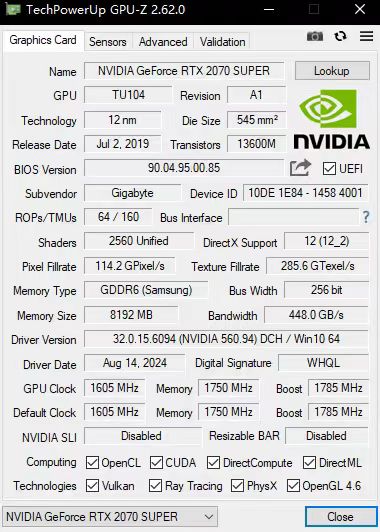
Tool: GPU-Z
- Download the latest version of GPU-Z, run it, and check the following key items:
- GPU Model: Must exactly match your purchased model (e.g., RTX 5090 should not display as 5090 Ti or 4080).
- Memory Specifications: Capacity (e.g., 24GB), type (GDDR7/GDDR6X), and bus width (e.g., 384-bit) must match official parameters.
- PCIe Interface: Should display as
PCIe x16 4.0(or 5.0); if it showsx8orx1, check motherboard slot contact. - Core Parameters: CUDA core count/stream processor count and manufacturing process (e.g., 5nm) should match official data.
Tip: If key parameters are abnormal (e.g., Device ID doesn't match the model), save screenshots and contact the seller for verification.
Step 2: Install Official Latest Drivers (Resolving Compatibility Issues)
- Install while disconnected from the internet (to avoid Windows automatically installing outdated drivers).
- Download the latest drivers from official websites:
- NVIDIA: geforce.com/drivers
- AMD: amd.com/support
- Intel Arc: intel.com/download-center
- Choose Custom Installation, and select "Perform a clean installation" (to remove residual drivers).
- After installation, restart the system, then reconnect to the internet.
Note: Third-party driver tools or automatic system updates may cause compatibility issues; prioritize official channels.
Step 3: Performance Benchmark Testing (Verifying Actual Performance)
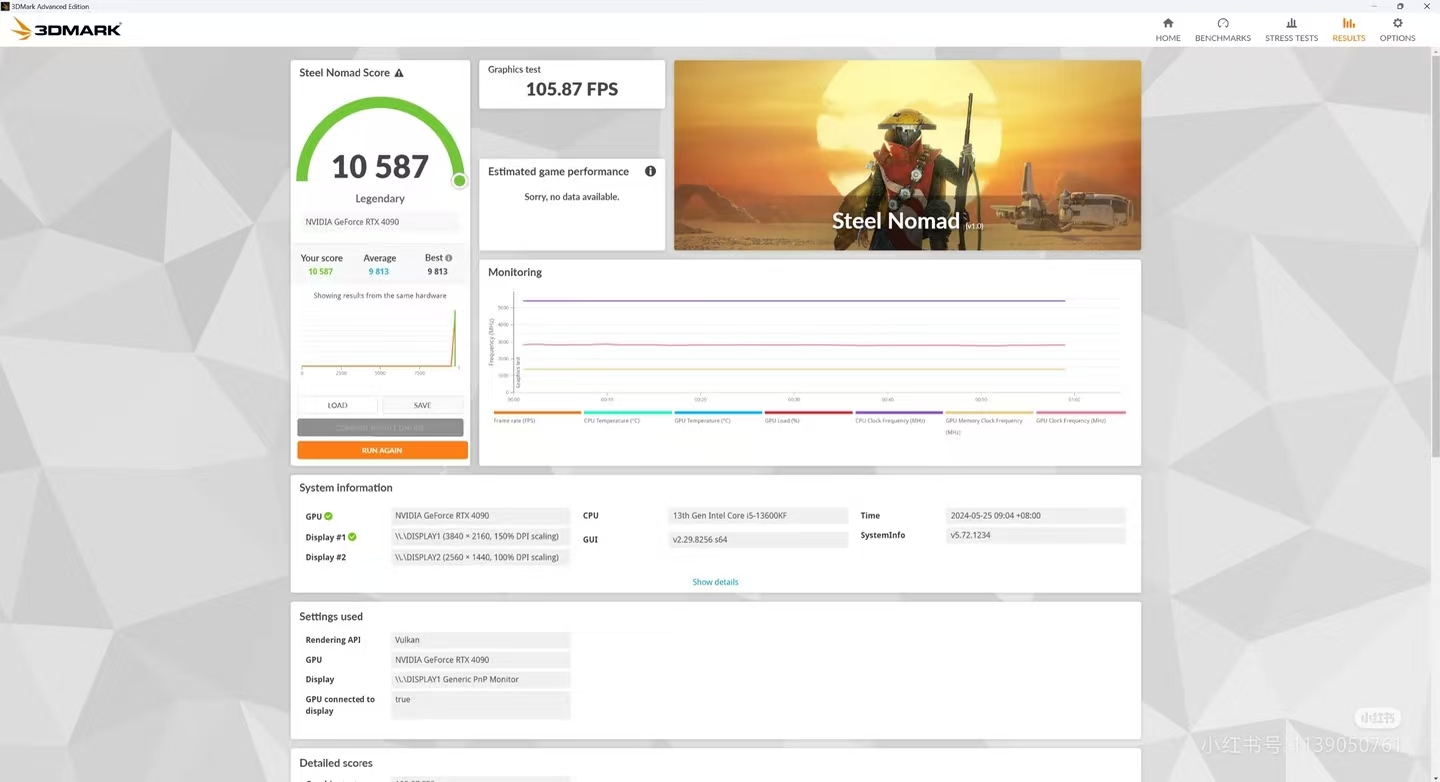
Tool: 3DMark (Free Steam Demo Version)
- Run Time Spy (basic performance) and Port Royal (ray tracing performance, suitable for RTX 40/50 series).
- Compare your scores with the average for your model in the 3DMark database (a fluctuation of ±8% is considered reasonable).
- If scores are significantly lower than average (e.g., a drop >10%), investigate:
- Inadequate power supply (check power supply capacity and connections)
- Cooling issues (is core temperature consistently too high?)
- BIOS settings anomalies (e.g., frequency restrictions)
Step 4: Stability Stress Testing (Identifying Potential Hardware Defects)
Tool Combination: MSI Afterburner + RTSS (Monitoring) + OCCT GPU 3D Test (Stress)
- Configure Afterburner to monitor: frame rate, GPU temperature, power consumption, and frequency.
- Run the OCCT GPU 3D test for 15-20 minutes (you can increase load to 110% power).
- Observe key metrics:
- Temperature: Core < 85°C, hotspots < 95°C (higher hotspots are normal for RTX 50 series).
- Stability: No screen artifacts, black screens, blue screens, or sudden frame rate drops.
- Power Consumption: Should be close to official TGP (e.g., RTX 5090 around 450-600W).
Note: If abnormalities occur during testing, stop using the card and contact customer support.
Step 5: Real-World Scenario Validation (Confirming Daily Usage Reliability)
Run high-load tasks for 30+ minutes:
- Gaming: Cyberpunk 2077 (full ray tracing settings), Black Myth: Wukong, etc.
- Productivity: Blender rendering, 4K video editing (Premiere Pro/DaVinci Resolve).
Focus Points: - Whether driver crashes occur, or screen artifacts appear (e.g., mosaic, flickering).
- Whether temperatures remain within safe ranges (avoiding sudden shutdowns).
Verification Process Summary Table
| Step | Core Purpose | Key Tools | Recommended Duration |
|---|---|---|---|
| 1. Hardware Specification Verification | Confirm model and parameter matching | GPU-Z | 5 minutes |
| 2. Driver Installation | Resolve compatibility issues | Official drivers | 10 minutes |
| 3. Benchmark Testing | Verify performance consistency | 3DMark | 15 minutes |
| 4. Stress Testing | Detect long-term stability | OCCT + Afterburner | 20 minutes |
| 5. Real-World Scenario Testing | Evaluate daily usage reliability | Games/Productivity software | 30 minutes+ |
Important Notes
- This process can effectively identify most common hardware issues (e.g., miner card remnants, BIOS tampering, power supply issues), but cannot guarantee 100% coverage of all potential faults.
- If abnormalities are found during testing, save logs and screenshots, and contact the seller or customer support.
- Avoid using non-official tools (e.g., third-party driver optimization software), which may introduce compatibility risks.
By following these steps, users can systematically verify the hardware status and performance of their new graphics card, reducing subsequent issues caused by insufficient testing. It's recommended to complete this verification within 24 hours of purchase for optimal experience.