CPU stress testing is a systematic technique to push the processor into a high-load state. It is primarily used to verify a computer's stability, cooling performance, power supply reliability, and the rationality of its overall system architecture under extreme conditions. It is widely applied in new build verification, overclocking stability confirmation, cooling solution evaluation, and long-term server load testing.
Starting from the principle of "safety first," this article details the professional and standardized full process of CPU stress testing, helping readers obtain valuable data while minimizing hardware risks.
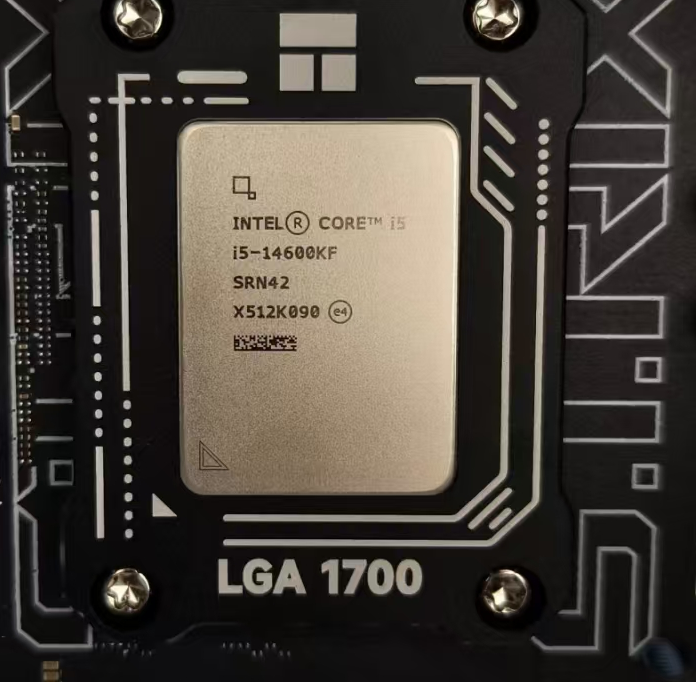
I. The True Purpose and Applicable Scenarios of Stress Testing
A common misconception is equating stress testing with "burn-in" or "running benchmark limits." In reality, the core goals of professional stress testing are:
- To confirm whether system behavior is predictable and controllable when approaching or reaching design limits.
- To identify potential issues with cooling, power delivery, VRMs (Voltage Regulator Modules), or memory controllers.
- To provide reliable baseline data for subsequent optimizations (such as curve optimization or PBO/Precision Boost Overdrive adjustments).
- To verify the actual effects of new coolers, fan curves, case airflow, or new thermal paste.
It is not recommended to run extreme stress tests for extended periods arbitrarily, especially without adequate monitoring tools.
II. Essential Preparations Before Testing
Update All Critical Drivers and Systems
- Update the motherboard BIOS to the latest stable version (non-Beta).
- Update chipset drivers, graphics drivers, and Intel ME / AMD PSP firmware.
- Keep Windows / Linux updated with the latest patches.
Confirm Cooling and Power Supply Capabilities
- Is the cooler installed correctly? Is the mounting pressure uniform?
- Is the thermal paste fresh and applied appropriately? (Dot method / X method / Spread method depending on the CPU).
- Is the power supply rated wattage sufficient? (Recommended Gold rating or higher, 1.3–1.5 times the peak power consumption of CPU + GPU).
- Is the case airflow reasonable? Intake ≥ Exhaust.
Install Reliable Monitoring Software It is strongly recommended to run 2–3 applications simultaneously to avoid reading errors from a single source:
Software Main Function Recommendation Notes HWiNFO Most comprehensive sensor reading ★★★★★ Priority use; log recording HWMonitor Concise, suitable for quick checks ★★★★ Auxiliary Core Temp Precise core temperature ★★★★ More accurate for older platforms Ryzen Master AMD specific, includes Curve Optimizer ★★★★★ Essential for Ryzen Intel XTU Intel voltage/frequency tuning & monitoring ★★★★ Better for 12th–14th Gen+ Key Metrics to Monitor:
- CPU Package / Die Temperature (Most important)
- Temperature of each core (Check for hotspots)
- Vcore / VID / SOC Voltage
- PPT / EDC / TDC (AMD) or PL1/PL2/ICCmax (Intel)
- Motherboard VRM Temperature (Supported by some boards)
III. Comparison of Common Professional Stress Testing Tools (2026)
| Tool | Load Type | AVX Instructions | Power Push Capability | Stability Detection | Recommended Scenario | Precautions |
|---|---|---|---|---|---|---|
| Cinebench R24 | Rendering (Non-AVX-512) | Light | Moderate | General | Daily stability, cooling assessment | Closest to real-world loads |
| Prime95 | Pure Math (Large/Small FFT) | Yes | Extremely High | Very Strong | Finding worst-case cooling scenarios | Prone to overheating; use cautiously for daily verification |
| AIDA64 | System Stability Test | Optional | High | Strong | Comprehensive (CPU+FPU+Cache+RAM) | Check Stress CPU / FPU |
| OCCT | CPU / Linpack / Memory | Yes | Extremely High | Very Strong | Ultimate overclocking verification | Linpack mode has highest power draw |
| y-cruncher | Pi Calculation (Full-core heavy load) | Yes | Very High | Strong | Finding voltage instability / RAM issues | Extreme pressure on memory controller |
| IntelBurn Test | Linpack Wrapper | Yes | Extremely High | Strong | Intel platform limit verification | Less frequently updated but still effective |
Recommended Combination for 2026:
- Daily Stability Verification: Cinebench R24 Multi-core 30–60 min loop + AIDA64 (CPU/FPU checked).
- Overclocking / New Cooler Final Test: OCCT Linpack or Prime95 Small FFTs for 30–120 mins.
- Finding Worst-Case Scenarios (for cooling margin assessment): Prime95 v30.8+ Large FFTs or OCCT AVX2.
IV. Professional Testing Process (Recommended Steps)
Baseline Test Close all background programs, keeping only monitoring software.Run Cinebench R24 Multi-core for 10 minutes × 3 times. Record average score, maximum temperature, and power consumption.
Short-Term High-Load Verification (10–30 mins) Run AIDA64 System Stability Test (CPU + FPU only).Observe if temperature reaches a steady state within 2–5 minutes.Check for abnormal temperature spikes or throttling triggers.
Medium-to-Long Term Stability Assessment (30–120 mins) Select tools based on purpose:
- Regular Users / New Build Verification: Cinebench + AIDA64 loop for 60 mins.
- Overclockers: OCCT Linpack or Prime95 Small FFTs for at least 60 mins with no errors.
Post-Test Checks
- Review HWiNFO logs: Maximum temperature, occurrence of PROCHOT, frequency throttling.
- Check Windows Event Viewer for WHEA errors (Hardware Errors).
- Run Cinebench once more to compare if the score has dropped compared to the baseline.
V. Critical Safety Red Lines and Suggested Thresholds (Reference for Mainstream 2026 Platforms)
| Item | Safe Upper Limit | Danger Zone | Immediate Stop Signal |
|---|---|---|---|
| Intel Core Temperature | ≤ 90–95 °C (Package) | Sustained >98 °C | ≥100 °C or sustained PROCHOT |
| AMD Ryzen Temperature | ≤ 89–92 °C (Tctl/Tdie) | Sustained >95 °C | ≥95 °C with PPT/EDC locked |
| VRM Temperature | ≤ 85–90 °C | >100 °C | >105 °C (Some boards auto-protect) |
| Test Duration (Extreme) | Initial verification 30–60 min | Daily use not recommended >2 hours | — |
Golden Rule: If the temperature continuously exceeds 95 °C with fans at full speed and continues to rise → Stop the test immediately.
VI. Frequently Asked Questions (FAQ)
Q1: Can laptops undergo stress testing? It is highly discouraged to perform long-duration tests. Most laptops will hit power or thermal walls severely after 15–30 minutes, rendering the test meaningless and accelerating aging. If verification is necessary, recommend running only a 10-minute Cinebench loop with good ventilation.
Q2: What to do if a Blue Screen of Death (BSOD) or restart occurs during testing? Likely causes: Insufficient voltage → VRM overheating protection → Memory instability → CPU defect.Priority check: Power supply → Lower voltage and retest → Run MemTest86 to rule out memory issues.
Q3: Is manual stress testing still needed for AI Auto-Overclocking (e.g., Intel APO / AMD EXPO)? Yes, it is still recommended to perform a 30–60 minute medium-load verification to ensure the manufacturer's preset curves are safe for your specific silicon and cooling conditions.
Conclusion
A standardized, monitored CPU stress test is far more valuable than blindly running a "burn-in" for days. True hardware experts do not just push temperatures to 100 °C; they clearly know how much margin the system has at 85 °C and what happens in the worst-case scenario.
We hope this article helps you evaluate your CPU and overall system stability more professionally and safely.
(Final Reminder: This article is for learning and reference only. Any overclocking or testing carries certain risks. Please operate only after fully understanding your own hardware status.)