Many people encounter two typical symptoms when their computer screen goes black:
- Type A: Press the power button → Absolutely no response (no lights, no fan noise, no "beep," complete silence).
- Type B: The tower has lights on, fans are spinning (sometimes wildly), but the monitor is black/no signal, and keyboard lights may be off or unresponsive.
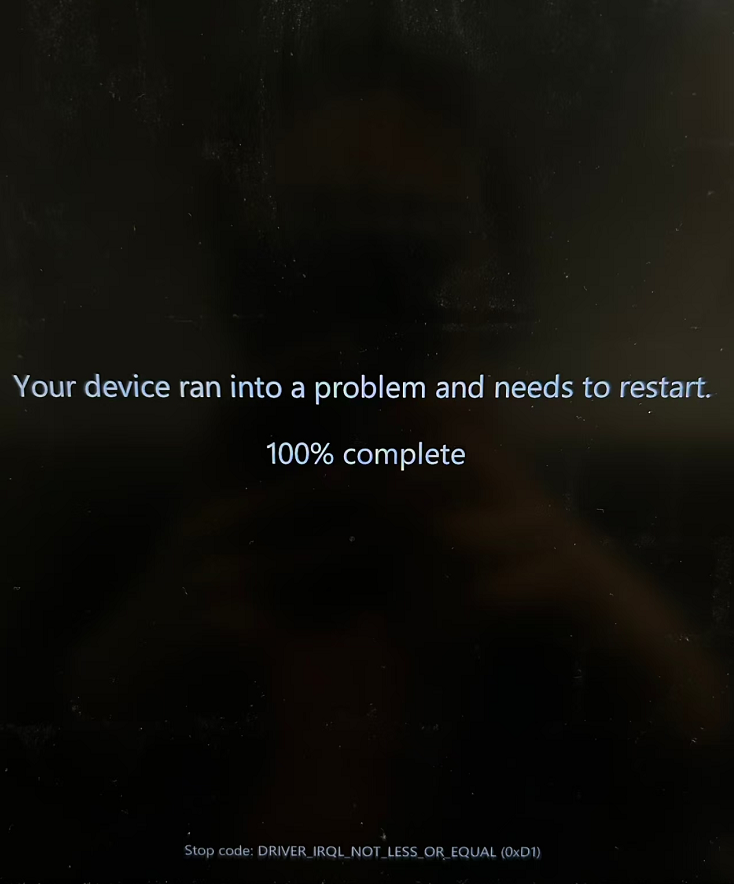
The troubleshooting logic for Type A and Type B is completely different, but over 90% of cases are hardware-related. Following this order to troubleshoot yourself can help most people identify the culprit (Note: Prevent static electricity: Touch a metal object to discharge or wear an anti-static wristband before operating).
First, Identify Your Symptom
- Type A: Completely dead; pressing the power button feels like there's no power → Focus on Power Supply / Motherboard Power Circuit.
- Type B: The tower is "alive" (lights on, fans spinning), but no display → Focus on Display Output Chain + Self-Check Hardware (RAM/GPU/CPU).
Type A: Absolutely No Response (0 Reaction to Power Button) — 99% Probability of These Four Culprits
Power Supply Unit (PSU) Failure — Highest probability ≈45%
- No standby 5VSB output, blown fuse, bulging/leaking main capacitors, etc.
- Issues with home wall outlets, power strips, or the power cable itself.
Motherboard Power Circuit / Short-Circuit Protection — ≈25–30%
- Front panel power switch jumper loose/poor contact.
- Motherboard short circuit (I/O shield metal tabs touching pins, missing standoffs/screws, dust + humidity, USB port short).
- Blown MOSFETs or capacitors on the motherboard.
Abnormal CPU Power Delivery — ≈15%
- CPU 8-pin (or 4+4 pin) connector not plugged in, loose, or inserted incorrectly.
- Deformed or heavily oxidized pins on a used CPU.
Others (Complete motherboard failure, rare CPU death, etc.)
Type A Quick Troubleshooting Steps
3-Minute Basic Check
- Try a different power cable and a different wall outlet.
- Laptops: Remove battery and adapter → Hold power button for 40–60 seconds to discharge → Plug in only the adapter and try again.
Independent PSU Test (Paperclip Test)
- Unplug the 24-pin main connector. Use a paperclip to short the Green wire to any Black wire → Turn on the PSU switch.
- Fan spins: PSU is likely good; problem lies with the motherboard or power button wiring.
- Fan does not spin: PSU is bad (replace with one of same or higher wattage to test).
Short the Motherboard Power Pins
- Locate the "PWR_SW" two pins on the motherboard and short them with a screwdriver for 1–2 seconds.
- Starts up: Case power button or cable is faulty.
- No effect: Continue troubleshooting.
Minimal System Configuration
- Keep only: Motherboard + CPU + Cooler + 1 RAM stick + PSU. (Unplug all drives, graphics cards, and expansion cards).
- Short the power pins to start.
- Still no response: Basically narrows it down to one of three: Motherboard, CPU, or PSU.
Type B: Tower Lights On & Fans Spinning, But Monitor Black/No Signal (Most Common: Stuck at POST)
Common Probability Ranking (Based on actual repair experience):
RAM Contact Issues / Gold Finger Oxidation — Highest probability ≈40–50%
- Most hidden, easiest to fix!
Graphics Card Issues (Dedicated GPU Users) — ≈20–30%
- Not seated properly, power cables unplugged, bad port, driver crash (though no signal at boot is usually hardware).
Display Connection / Monitor Issues — ≈15%
- Loose/bad cable, plugged into wrong port (motherboard instead of dedicated GPU), wrong monitor input source, or monitor failure.
Motherboard / CPU / BIOS Issues — ≈10–15%
- Wrong BIOS settings, dead CMOS battery, CPU pin issues.
Others (Hard drive short causing POST hang, insufficient PSU wattage, etc.)
Type B Safe Troubleshooting Steps (Strongly recommended to follow in order)
Preparation: Power off, discharge (hold power button for 10 sec), open case, prepare an eraser and air blower.
The Simplest Three Steps (Solves 30%+ of cases)
- Check Monitor: Is it on? Is the input source correct (HDMI1/2/DP)? Try a different cable or port.
- Verify Video Cable Connection: Have a dedicated GPU? Must plug into the dedicated GPU port! If you have integrated graphics, try plugging into the motherboard port (after removing the dedicated GPU to test).
- Keyboard Light Test: After turning on, press
Caps Lock. Does the light toggle?- Yes: Host basically passed POST; issue is in the display chain.
- No: System is stuck during self-check (POST).
Reseat RAM (The Golden Rule!)
- Remove all RAM sticks. Gently clean the gold contacts with an eraser (both sides).
- Blow out dust from the RAM slots using an air blower.
- Insert only one RAM stick (try different slots), ensuring you hear a "click."
- Try booting → Many "fans spin, no display" cases are solved here.
Dedicated GPU Specific Checks (Must do if you have one)
- Remove the dedicated GPU → Clean gold contacts → Re-insert firmly (ensure PCIe power 6/8-pin cables are connected).
- Try plugging into the motherboard port (if your CPU has integrated graphics).
- GPU fan doesn't spin / No LED: GPU is likely dead.
Minimal System + Integrated Graphics Test
- Unplug all drives/SSDs/M.2, remove dedicated GPU (if any), and disconnect peripherals.
- Keep only: Motherboard + CPU + Cooler + 1 RAM stick + PSU.
- Plug display cable into the motherboard port → Short power pins to start.
- Can enter BIOS: One of the removed components was faulty; re-add them one by one to find the culprit.
- Still black screen: Narrowed down to Motherboard, CPU, or RAM.
Further Diagnosis
- Debug LEDs / Speaker: If the motherboard has debug lights or a buzzer, note the code and check the manual (e.g., Memory: 1 long 2 short; GPU: 1 long 3 short).
- CMOS Reset: Remove the motherboard battery for 5–10 minutes, or short the CLR_CMOS pins.
- Swap Test: Try different RAM/GPU/Monitor (having spare parts gives the most accurate result).
Summary Comparison Table (Type A vs. Type B)
| Type | Typical Symptoms | Most Likely Culprit | Recommended First Action | DIY Difficulty |
|---|---|---|---|---|
| A | 0 response to button, no lights/fans | PSU > Motherboard Power Circuit | Swap cable/outlet → PSU Paperclip Test → Short Motherboard Pins | ★★☆☆☆ |
| B | Lights/Fans on, no display | RAM Contact > Graphics Card | Clean RAM contacts → Change Slot → Remove Dedicated GPU & Use Integrated | ★★☆☆☆ |
Final Safety Reminders
- Perform all operations with power disconnected to avoid hot-plugging damage.
- If the motherboard shows obvious burn marks, bulging capacitors, or smells burnt → Do not attempt repair yourself; send it to a professional.